This is Part 1 of the Remote Agent Workflow series.
This guide explains how to control a Mac terminal from a phone and keep long-running agent tasks alive, such as Codex, automation scripts, or local development agents.
The goal is not remote desktop access. The goal is a reliable remote terminal workflow:
Phone -> SSH -> Mac -> tmux -> Codex / agent task
With this setup, your Mac becomes a lightweight remote execution node that you can access from anywhere.
What Each Tool Does Link to heading
SSH Link to heading
SSH is the secure remote login protocol. It lets your phone open a terminal session on your Mac.
In this workflow, SSH provides:
- Secure command-line access to the Mac.
- Password or SSH key authentication.
- The ability to run commands remotely from a phone.
SSH does not keep tasks alive after the network connection drops. That is why tmux is needed.
Tailscale Link to heading
Tailscale creates a private network between your devices. It gives your Mac and phone stable private IP addresses, even when they are on different networks.
In this workflow, Tailscale provides:
- Remote access over 4G, 5G, hotel Wi-Fi, office Wi-Fi, or home Wi-Fi.
- A stable
100.x.x.xaddress for the Mac. - Encrypted device-to-device networking.
- No need to expose SSH directly to the public internet.
This guide assumes you use the official Tailscale macOS client. In that setup, the app manages the background service, login state, and menu bar status for you.
In daily use, the Tailscale client should stay running in the background. The command line is mainly for checking state:
tailscale status
tailscale ip
If the Mac is not connected, open the Tailscale app from the menu bar and connect it there. For this workflow, treat the macOS client as the primary control surface for Tailscale.
Termius Link to heading
Termius is the phone SSH client. It stores your SSH hosts, keys, and connection settings.
In this workflow, Termius provides:
- A mobile terminal interface.
- Saved SSH host configuration.
- SSH key management.
- Fast reconnection when your phone network changes.
You can use another SSH app, but Termius is convenient on mobile.
tmux Link to heading
tmux is a terminal session manager. It lets you start a shell session, detach from it, and reconnect later.
In this workflow, tmux provides:
- Long-running terminal sessions that survive phone disconnects.
- Easy re-entry into an existing Codex or agent session.
- Multiple remote terminal windows on the Mac.
Without tmux, closing Termius or losing network may terminate your active shell task.
caffeinate Link to heading
caffeinate is a built-in macOS command that prevents sleep while it is running.
In this workflow, caffeinate provides:
- Protection against idle sleep.
- More reliable long-running jobs.
- A simple way to keep Codex or an agent running while the screen is locked or off.
Important behavior:
| Mac action | Effect on remote task |
|---|---|
| Lock screen | Usually safe |
| Display turns off | Usually safe |
| Idle sleep | Unsafe unless caffeinate is running |
| Closing the laptop lid | Usually unsafe unless the Mac is configured for clamshell mode with power attached |
Recommended Architecture Link to heading
There are two layers in the practical setup:
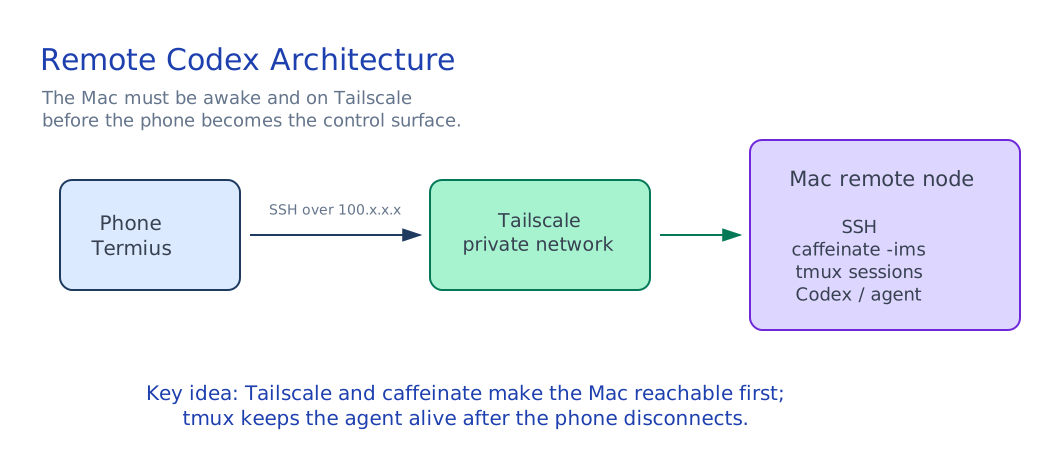
Host readiness layer:
  Tailscale client running
  caffeinate running
  Mac reachable and awake

Phone work layer:
  SSH from Termius
  create or attach tmux agent sessions
  detach when done
The important distinction is:
- The Mac must already be reachable and awake before the phone can SSH into it.
- The phone-side workflow should not be responsible for keeping the Mac alive.
- tmux keeps the agent session alive after the phone disconnects.
The recommended commands are:
mac-awake-on     -> run on the Mac before remote work; checks Tailscale and starts caffeinate
agent-new        -> run from the phone SSH session; creates a new tmux agent session
phone-disconnect -> run from inside tmux; detaches the phone without stopping the agent
mac-awake-off    -> run when remote work is finished; stops caffeinate and allows sleep again
Step 1: Enable SSH on the Mac Link to heading
Option A: Use System Settings Link to heading
Open:
System Settings -> General -> Sharing -> Remote Login
Turn on Remote Login.
Option B: Use the Command Line Link to heading
sudo systemsetup -setremotelogin on
Verify:
sudo systemsetup -getremotelogin
Expected output:
Remote Login: On
If macOS blocks the command, give your terminal app the required permission in:
System Settings -> Privacy & Security -> Full Disk Access
Step 2: Install and Log In to the Tailscale Client Link to heading
Install Tailscale on both:
- Your Mac.
- Your phone.
On the Mac, use the official Tailscale macOS client:
- Install Tailscale.
- Open the Tailscale app.
- Log in to the same Tailscale account you use on your phone.
- Keep the app running in the menu bar.
- Enable launch at login if you want the Mac to be reachable after a restart.
On the Mac, check status:
tailscale status
If the Mac is not connected, use the Tailscale menu bar app to connect it.
Get the Mac Tailscale IP:
tailscale ip
You should see something like:
100.x.x.x
This is the address your phone will use for SSH.
Step 3: Configure Termius on the Phone Link to heading
Create a new host in Termius:
Address: 100.x.x.x
Username: your macOS username
Port: 22
You can get your macOS username with:
whoami
At this point, password login may already work. For regular use, SSH key login is better.
Step 4: Configure SSH Key Login Link to heading
Generate a dedicated SSH key for Termius on the Mac:
ssh-keygen -t ed25519 -f ~/.ssh/id_ed25519_termius
Add the public key to the Mac’s authorized keys:
cat ~/.ssh/id_ed25519_termius.pub >> ~/.ssh/authorized_keys
chmod 700 ~/.ssh
chmod 600 ~/.ssh/authorized_keys
Print the private key:
cat ~/.ssh/id_ed25519_termius
Import the private key into:
Termius -> Keychain -> Import Key
Then edit the Termius host and select this key for authentication.
Test the connection. A successful login should show a shell prompt like:
yourname@MacBook ~ %
Step 5: Install tmux Link to heading
If tmux is not installed:
brew install tmux
Create a session manually:
tmux new -s agent
Detach without stopping the task:
Ctrl + B, then D
Reattach later:
tmux attach -t agent
Step 6: Add Remote Workflow Scripts Link to heading
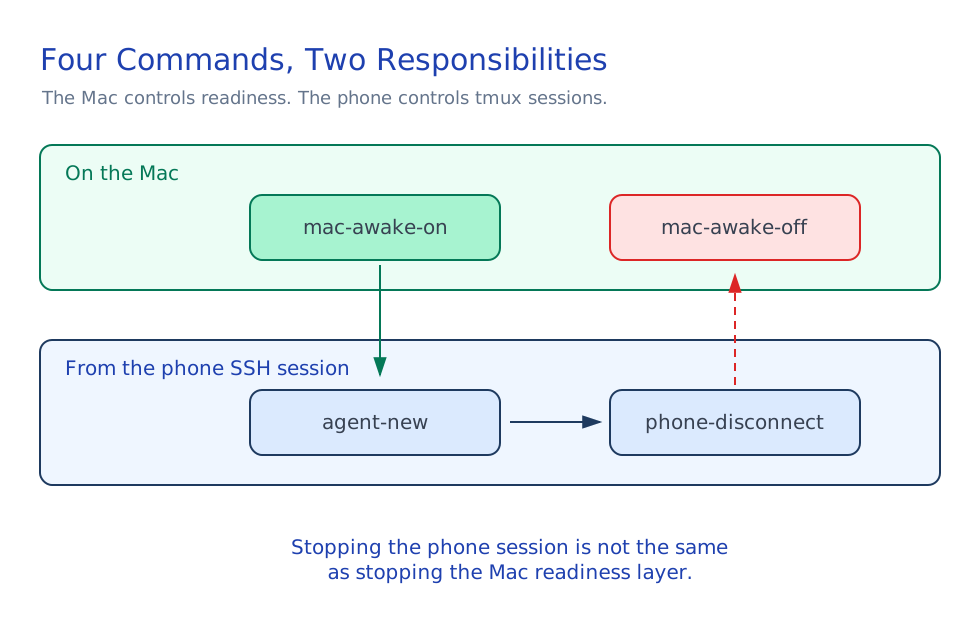
All scripts live on the Mac. The difference is when you use them:
- Run
mac-awake-ondirectly on the Mac before you leave it as a remote machine. - Run
agent-newafter connecting from the phone through SSH. - Run
phone-disconnectfrom inside tmux when you want to leave the phone session. - Run
mac-awake-offwhen you no longer need the Mac to stay awake.
Create a personal scripts directory:
mkdir -p ~/.local/bin
Create ~/.local/bin/mac-awake-on:
#!/bin/zsh

set -e

PID_FILE="/tmp/remote-caffeinate.pid"

echo "Preparing this Mac for remote access..."

if pgrep -x "Tailscale" >/dev/null 2>&1; then
  echo "Tailscale macOS client is running."
else
  echo "Opening Tailscale macOS client..."
  open -a Tailscale || true
  sleep 2
fi

if command -v tailscale >/dev/null 2>&1; then
  TAILSCALE_READY="false"

  for _ in 1 2 3 4 5; do
    if tailscale status >/dev/null 2>&1; then
      TAILSCALE_READY="true"
      break
    fi
    sleep 2
  done

  if [ "$TAILSCALE_READY" = "true" ]; then
    echo "Tailscale is online."
    echo "Tailscale IP:"
    tailscale ip
  else
    echo "Tailscale is not connected."
    echo "Open the Tailscale macOS app from the menu bar and connect this Mac."
    exit 1
  fi
else
  echo "Warning: tailscale command not found."
  echo "Install the official Tailscale macOS client and keep it running."
  exit 1
fi

if [ -f "$PID_FILE" ] && kill -0 "$(cat "$PID_FILE")" 2>/dev/null; then
  echo "caffeinate is already running."
else
  echo "Starting caffeinate..."
  caffeinate -ims &
  echo $! > "$PID_FILE"
fi

echo "Mac remote readiness is on."
echo "You can now SSH into this Mac from your phone."
Create ~/.local/bin/agent-new:
#!/bin/zsh

set -e

if ! command -v tmux >/dev/null 2>&1; then
  echo "tmux is not installed. Install it with: brew install tmux"
  exit 1
fi

SESSION_NAME="${1:-agent-$(date +%Y%m%d-%H%M%S)}"

if tmux has-session -t "$SESSION_NAME" 2>/dev/null; then
  echo "Session already exists: $SESSION_NAME"
  echo "Attaching..."
  tmux attach -t "$SESSION_NAME"
  exit 0
fi

echo "Creating tmux session: $SESSION_NAME"
tmux new-session -s "$SESSION_NAME"
Create ~/.local/bin/phone-disconnect:
#!/bin/zsh

set -e

if [ -n "$TMUX" ]; then
  tmux detach-client
else
  echo "You are not inside a tmux session."
  echo "Use 'exit' to close the SSH shell."
fi
Create ~/.local/bin/mac-awake-off:
#!/bin/zsh

set -e

PID_FILE="/tmp/remote-caffeinate.pid"

echo "Turning off Mac remote readiness..."

if [ -f "$PID_FILE" ]; then
  PID="$(cat "$PID_FILE")"

  if kill -0 "$PID" 2>/dev/null; then
    kill "$PID"
    echo "caffeinate stopped."
  else
    echo "No active caffeinate process found."
  fi

  rm -f "$PID_FILE"
else
  echo "No remote caffeinate PID file found."
fi

echo "Mac can sleep normally again."
echo "Tailscale is left running so the Mac remains reachable when awake."
Make the scripts executable:
chmod +x ~/.local/bin/mac-awake-on ~/.local/bin/agent-new ~/.local/bin/phone-disconnect ~/.local/bin/mac-awake-off
Make sure ~/.local/bin is in your shell path. Add this to ~/.zshrc if needed:
export PATH="$HOME/.local/bin:$PATH"
Reload your shell:
source ~/.zshrc
Step 7: Daily Workflow Link to heading
Before Leaving the Mac Link to heading
On the Mac, start the host readiness layer:
mac-awake-on
This makes sure:
- The Tailscale client is running.
- The Mac is visible on your Tailscale network.
caffeinateis running so the Mac does not idle sleep.
From the Phone Link to heading
Open Termius and connect to the Mac through its Tailscale IP.
Create a new tmux agent session:
agent-new
You can also give the session a specific name:
agent-new codex
Inside tmux, run Codex or your agent task:
codex
Or:
node orchestrator.js
Detach from tmux without stopping the task:
phone-disconnect
You can also use the native tmux shortcut:
Ctrl + B, then D
After detaching from tmux, close the SSH shell:
exit
Reconnect Later Link to heading
SSH from Termius again, then attach to an existing tmux session:
tmux ls
tmux attach -t codex
Or create a fresh session:
agent-new
When Remote Work Is Finished Link to heading
When you are done and want to allow the Mac to sleep normally again, run:
mac-awake-off
This stops caffeinate. It does not quit Tailscale, because keeping Tailscale running makes the Mac reachable again the next time it is awake.
Recommended Defaults Link to heading
Use these defaults unless you have a specific reason not to:
| Component | Recommended setting |
|---|---|
| Tailscale | Keep running in the background |
| SSH | Enable Remote Login |
| SSH authentication | Use a dedicated SSH key |
| tmux session | Keep an agent session |
| caffeinate | Start with mac-awake-on, stop with mac-awake-off |
Security Notes Link to heading
Use a dedicated SSH key for Termius instead of reusing your main personal key.
Keep SSH access limited to trusted networks. Tailscale is preferable to exposing port 22 directly to the public internet.
If you no longer use a phone or key, remove its public key from:
~/.ssh/authorized_keys
You can check currently logged-in users with:
who
You can check SSH-related logs with:
log show --predicate 'process == "sshd"' --last 1h
Troubleshooting Link to heading
Termius Cannot Connect Link to heading
Check that Remote Login is enabled:
sudo systemsetup -getremotelogin
Check the Mac’s Tailscale status:
tailscale status
Check the IP:
tailscale ip
Make sure Termius uses:
Host: 100.x.x.x
Port: 22
Username: your macOS username
SSH Works on Wi-Fi but Not on 4G or 5G Link to heading
Use the Tailscale IP, not the local 192.168.x.x IP.
The local IP only works on the same LAN. The Tailscale IP works across networks.
Task Stops After Disconnecting Link to heading
Run the task inside tmux. From the phone SSH session:
agent-new codex
Detach with:
phone-disconnect
Or use the tmux shortcut:
Ctrl + B, then D
Do not close the shell before detaching.
Task Stops After the Mac Sleeps Link to heading
Before relying on phone access, run this on the Mac:
mac-awake-on
This starts caffeinate -ims in the background and checks that Tailscale is available.
The Laptop Stops After Closing the Lid Link to heading
For MacBooks, closing the lid can still interrupt work unless the machine is connected to power and configured for clamshell mode with an external display or appropriate power settings.
For reliable agent runs, keep the Mac connected to power and avoid closing the lid unless you have verified your setup.
Final Mental Model Link to heading
Remote Mac access is three separate problems:
Network access: Tailscale
Remote login: SSH + Termius
Long-running execution: tmux + caffeinate
Once these are separated, the workflow becomes simple:
# On the Mac
mac-awake-on

# From the phone after SSH
agent-new codex

# From inside tmux when leaving the phone session
phone-disconnect

# When remote work is fully finished
mac-awake-off
This gives you a lightweight remote execution system controlled from your phone.
Connected From the Phone Link to heading
After the setup is complete, a successful mobile session should look like this:
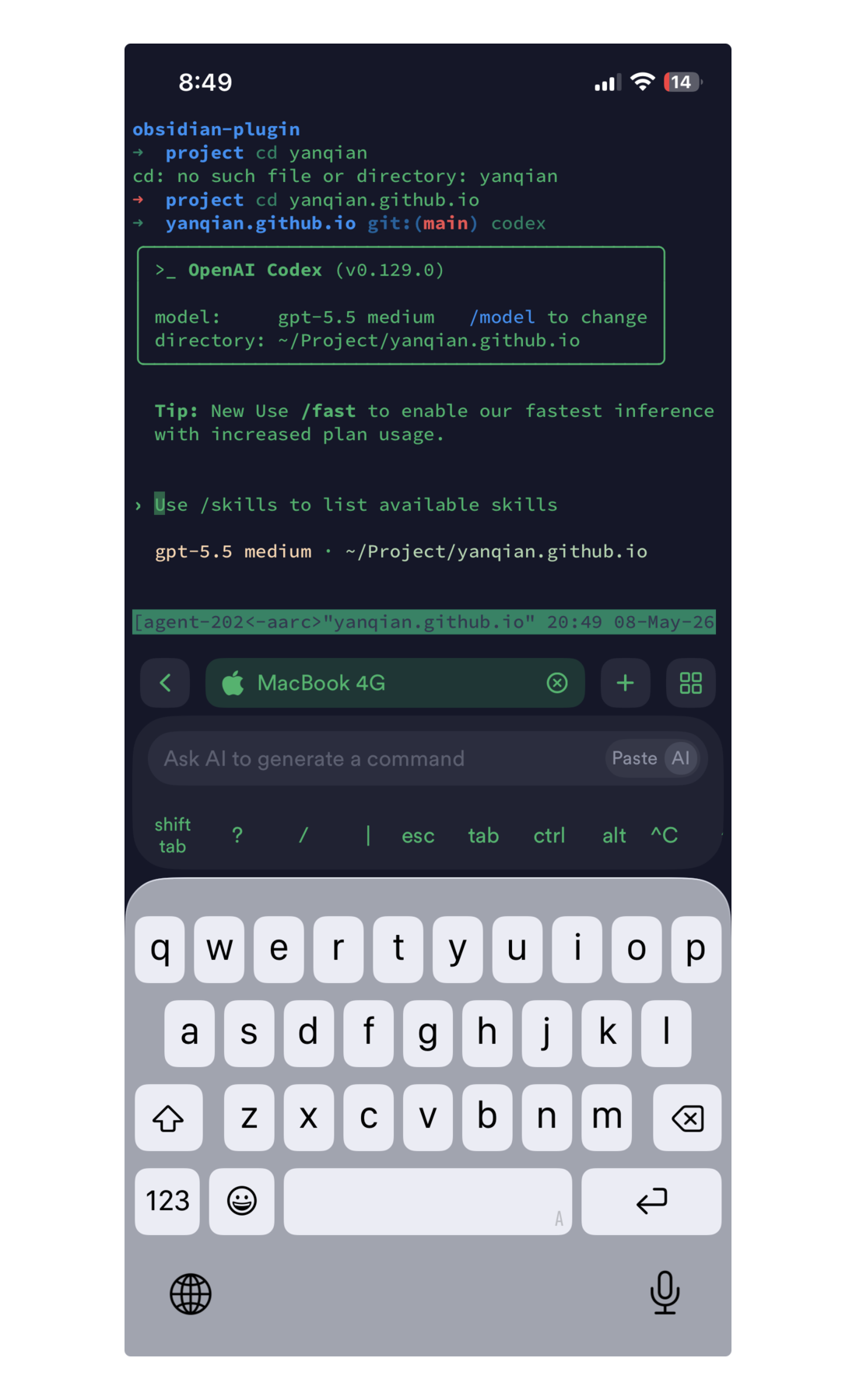
In this example, the phone is connected to the Mac through Termius, the shell is inside a tmux session, and Codex is running inside the remote project directory.